
OSC/Midi
Musix can wirelessly send the notes you play to a computer, other applications on your iPad/iPhone, or to hardware MIDI devices. This means you can use the synthesizers and audio software you already own to make great music wirelessly with the Musix Pro interface.
The Short Version: Easy as 1-2-3
The instructions provided should allow you to connect Musix Pro to other apps, computers, or hardware. If you have any issues be sure to read the additional information. For best computer connections, make sure your iPhone/iPad is on the same wireless network as your computer.*
These instructions assume you know what you are doing. Each step may require some additional learning, please see below for the Detailed Instructions.MIDI Between Apps
When using Musix Pro with other MIDI apps Musix Pro will not show up in the list of MIDI connections of other apps. This occurs because Musix Pro does not receive MIDI data so it does not run in the background. This is fine is most cases as long as you are able to see the app in Musix Pro's MIDI list. If the app has not enable to ability to play all incoming MIDI, you can use a program such as MidiBridge in order to connect the two applications.- Start the program you want to send the MIDI signal to
- Make sure it is setup to run in the background (different depending on the app)
- Switch back to Musix Pro
- Tap on the instrument icon on the menu (
 ) and ensure that MIDI is turned on
 - Tap on blue wording under the heading MIDI - this will either be a configured device, app or words "No Outputs"
- The name of the program should be listed.
- If it says "Blocked" tap on the Blocked button to switch it to Sending
Wireless MIDI Between Musix Pro and a Mac
- Open "Audio Midi Setup" on your mac.
- Select MIDI from the instrument icon on the menu () of Musix Pro
- Use Audio Midi Setup to connect to your iPad/iPhone
- Tap on the instrument icon on the menu () and ensure that MIDI is turned on
- To access the MIDI settings, click on the whitespace and text under the MIDI heading
- Make sure that the MIDI connection "Net: ComputerName" says "Sending"
- If it says "Blocked" tap on "Blocked" to switch it back to Sending
Wireless MIDI Between Musix Pro and a Windows
We recommend using rtpMIDI which needs to be installed on your computer. It provides an experience with all core MIDI apps that is very similar to the experience on the Mac. If you are unfamiliar with the rtpMIDI software there is a thorough step-by-step tutorial on their page.- Download and install rtpMIDI
- Select MIDI from the instrument icon on the menu () of Musix Pro
- Use rtpMIDI to connect to your iPad/iPhone
- Tap on the instrument menu and ensure that MIDI is turned on
- To access the MIDI settings, click on the whitespace and text under the MIDI heading
- Make sure that the MIDI connection "Net: ComputerName" says "Sending"
- If it says "Blocked" tap on "Blocked" to switch it back to Sending
OSC
On Your Computer:- Find your computer's IP address.
- Launch software on your computer to receive OSC messages (e.g. OSCulator, MaxMSP).
- Choose or note the port used for OSC messages by your receiving software.
- Launch Musix Pro
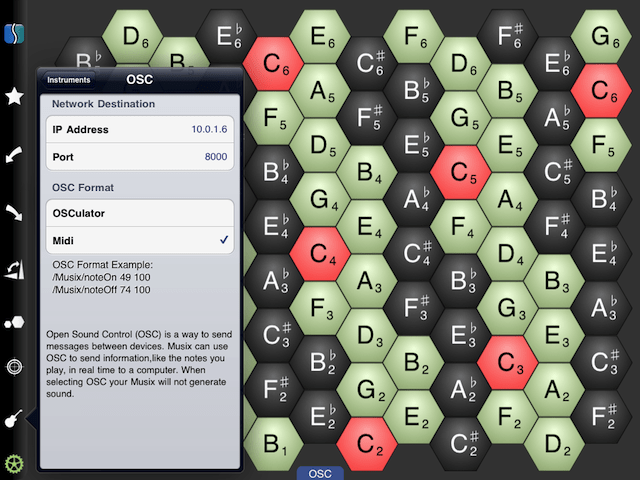
- Touch the instrument icon on the menu (),
and ensure OSC is turned on. Tap on the white area under the OSC heading and enter your computer's IP
address and the port number for OSC messages.
- Start playing!
Note: it is possible to connect your iPhone/iPad to your computer even if they are not on the same network. This may require you to forward your OSC port through your router, so it has been left out of the "short version" instructions. Some details are available below:
Additional Information:
Connecting With OSC
OSC (Open Sound Control) is a network protocol designed to allow multiple music making machines to communicate with each other. To use OSC, you need OSC-capable host software running on a computer with network access. Lots of folks use Osculator (http://www.osculator.net/), and other software programs can receive OSC messages as well including Pd and MaxMSP.
How to set up software to receive OSC messages from Musix:- OSCulator (See the Quickstart page)
- a MaxMSP patch that will receive OSC messages (see below)
If you need to connect using a windows machine, have a look at the list of software that works with TouchOSC.
To activate OSC messaging on Musix, touch the instrument icon () and select "OSC" from the list of available instruments. Click on the white area under the OSC heading to set up the
networking parameters you need to make sure the iPhone/iPad can talk to your computer. You will need the IP address of the computer that will
receive messages and a port number.
Note that this works best when both computers are on the same local network. If your computer's ip address starts with 10. or 172.16-172.31 or 192.168., then you are on a private network and your ip address is not accessible from a different network. In these cases, your computer must either be on the same local network as the iPhone/iPad, or your router must be forwarding the OSC port to your computer, for messages to be sent.
If you are having trouble connecting, you may want to use an ad-hock peer-to-peer network, which means your iPhone/iPad would connect directly to your computer.
The port number ensures that the the receiving program (Osculator, MaxMSP, etc) can be connected directly to the iPhone/iPad and receive messages. The specific port number you choose doesn't really matter as long as Musix and the receiving program use the same port, and that the port is not used for other internet traffic. Common choices include 7777, 8000 and 9000 depending on the program used to receive messages. OSCulator uses a default port of 8000 for incoming messages.
Once the receiving program is running and Musix has been set with the IP address and port, you should begin to see messages appearing in the receiving program. At that point, you can use these messages to trigger notes in your favourite synthesizer, or do anything else you like!
Using MaxMSP to receive OSC or MIDI messages
MaxMSP is a programming environment that is specifically tailored to receiving and processing real-time information. If you aren't familiar with MaxMSP, some of this may not make sense. This is a simple how-to on handling OSC and MIDI messages.
OSCOSC messages are sent over UDP, so to receive and handle OSC messages in MaxMSP, you use the UDP-receive object with the port number as an argument:
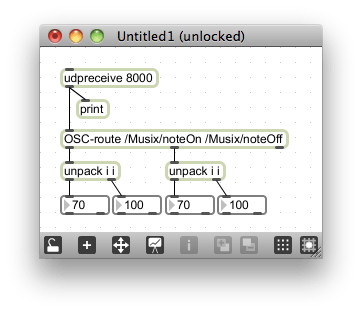
OSC-route objects allow you to split up the stream of OSC messages into usable values. When using the message format of "MIDI over OSC", messages come as either noteON or noteOFF, followed by the note value and the velocity, which can be unpacked after the OSC-route.
MIDIUsing Audio MIDI Setup on your Mac or rtpMIDI on your Windows machine MaxMSP sees a MIDI input that is sent from Musix Pro once connected, so all you need is a standard midi input object such as midiin or notein:
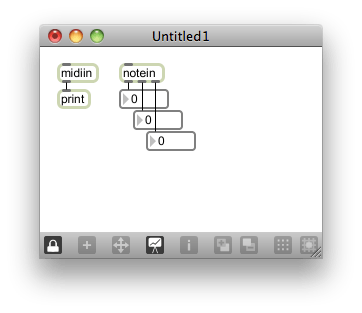
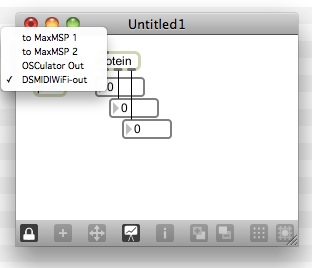
Once the object is placed, you need to click on the object to select which midi port it will be listening to. Once the proper MIDI port has been selected you should begin receiving MIDI messages.
OSC Formats:
OSCulator:On overall velocity is sent when connected (usually 100). After that each note is sent with an independent midi value. For example, midi 49 is sent as
/Musix/note48 {0|1}
{0|1} means either a 1 is sent when the note is pressed or a 0 when it is depressed
            /Musix/note49 1
            /Musix/note74 0
            /Musix/velocity 100
Midi Over OSC:In this mode, either a noteOn or noteOff message is sent. The first parameter is the midi value of the note and the second is the velocity
            /Musix/noteOn 49 100
            /Musix/noteOff 74 0
The Missing Link:This format is meant specifically for using the wireless Midi Box called The Missing Link allowing wifi to physical midi
            /midi/0x90 60 x
            /midi/0x80 60 x
Location Note, Location Grid, Location Action/Musix/note/{on|transition|softon|softoff|off|internal}
The location type of OSC messages are the most powerful and give intra-note location information. The note based messages have the midi note value in the path, the grid based messages have the row/col in the path, and the action based messages have the action as the main part of the path.
Location Note:
/Musix/note/{Note}/{on|transition|softon|softoff|off|internal} X Y Row Col TouchId DirectHit {TransitionMidiValue}
Location Grid:/Musix/grid/{Row}/{Col}/{on|transition|softon|softoff|off|internal} Note X Y TouchId DirectHit {TransitionRow} {TransitionCol}
Location Action:/Musix/action/{on|transition|softon|softoff|off|internal} Note X Y Row Col TouchId DirectHit {TransitionMidiValue}
Actions: {on|transition|softon|softoff|off|internal}
- On happens when a note is pressed
- transition occurs when a finger is held down and a new note is triggered exactly when an old note is un-triggered. If the note overlap is set to 0, this will be the message that occurs when sliding between notes.
- softon occurs when a finger is already held down and a new note is triggered. This will happen if you activate a new note while dragging your finger on the screen (when note overlap is larger than 0)
- softoff occurs when a finger is already held down and an existing note is turned off without lifting the finger (usually when note overlap is larger than 0)
- Off happens when a finger is lifted
- Internal happens when a finger moves around within a note
Row and Col are coordinates that can be used to uniquely identify any shape on the screen regardless if they have the same midi value. (Note: the row and col may reset if layout changes are made, or the application is restarted).
X Y give the location within the shape that is being touched. The middle of the shape is 0.5, 0.5. The top left of the bounding rectangle is 0.0, 0.0 and the bottom right of the bounding rectangle is 1.0, 1.0 (Note: When sending an Off signal, X and Y will both be 0.0). When touching a close by note (when DirectHit is 0) the location on the DirectHit note will be shown.
TouchId is an integer that uniquely identifies the touch associated with the note
DirectHit is 1 if the user is directly touching the note. A value 0 is returned if the note is activated due to a "close" touch as set by note overlap
TransitionMidiValue (for transition Row/Col) is present during a transition action and is the value of the note that was transitioned off of.